
Table of Contents
Attaching Files or Photos
To attach a file or photo to a message, follow these steps:
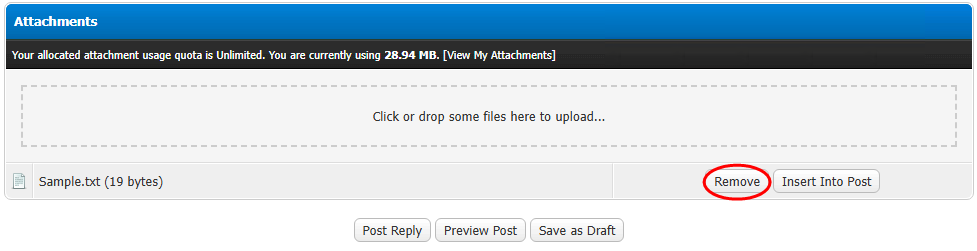
- Scroll to the Attachments section below the message box.
- Click on the “Click or drop some files here to upload…” box.
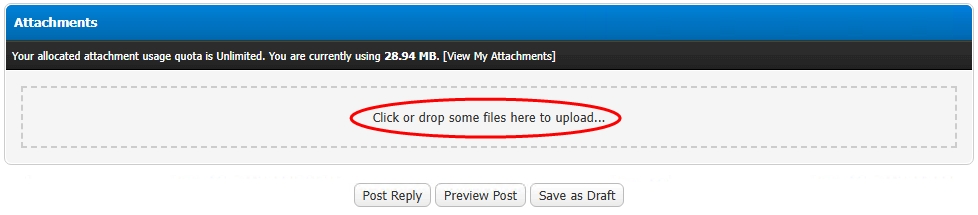
- Browse to select the desired file(s). Select Open.
- Alternatively, drag and drop some files in that box.
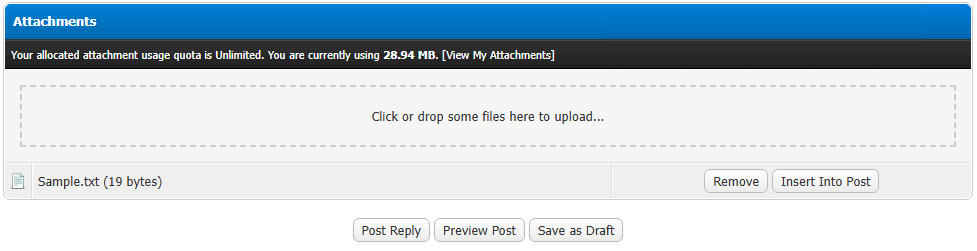
- Once all desired files have been selected and are listed under the box, and the post text is complete, click the “Post Reply” button to post the message with the attachments.


** IMPORTANT! ** The maximum file size for attached photos is 2 MB, though a few hundred kilobytes is much preferred. If your file is too large, you will get an error message when you try to attach it. Resize the photo using your favorite image-editing software, optionally saving with some compression if it's a JPEG image, and try again.
Insert Into Post
Rather than displaying an attachment at the end of the message, you can choose to insert the attachment into the message.
- Follow the steps above to attach the file.
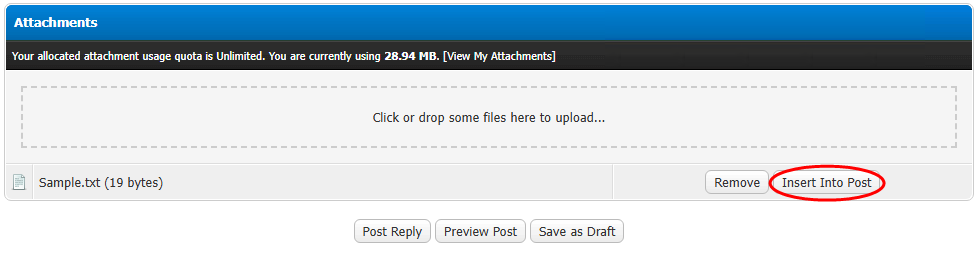
- Once the file is attached, position the cursor where you want the attachment in your post then select the “Insert Into Post” option to the right of the file.
- A reference to the file will be inserted into your message at that point. This may read something like “[attachment = 3757]“
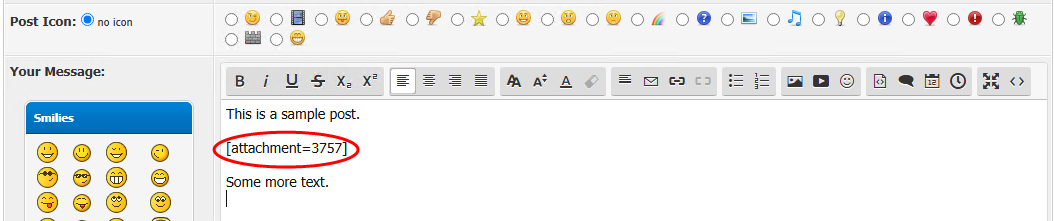
- You can move the reference to anywhere you want in your post using normal copy and paste.


Note that once inserted into the post, the attachment will no longer show up after the end of the post when viewed on the forum.
PLEASE NOTE: Embedding images hosted on other sites (aka hotlinking) is not allowed here. If you want to refer to an image that is located on another site, please post a link to the image, rather than using the “Insert an image” button on the editing toolbar to embed it in your message.
Removing Attachments
- If you select the wrong attachment, or change your mind about attaching the file, scroll to the Attachments section and select “Remove” beside the file to be removed.
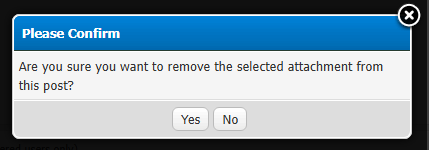
- A pop-up window will appear asking “Are you sure you want to remove the selected attachment from this post?” Select Yes to complete removal of the attachment.


When an attachment is removed, any reference to it in the post will also be removed.